Put Today's Deals on Your Link-in-Bio Page, Automatically
Foyer Butler's Today's Deals keeps a live grid of your Amazon, Walmart and TikTok Shop deals on your bio page, filtered by your packs, sorted by what pays, with no daily editing.
By The Influencer Butler Team · October 15, 2026 · 7 min read
A deals page is a great thing to have in your bio and a terrible thing to maintain by hand. Deals expire, prices move, and the moment you stop updating it, it starts sending people to products that are no longer on sale. Most creators try it once, keep it current for a week, and then quietly let it rot.
Foyer Butler's Today's Deals removes the maintenance. It is a section of your Foyer Butler link-in-bio page that fills itself from the same deals your Deals Butlers find and post. Turn it on once, decide what should show, and the page keeps itself current while you go film something.
Where the deals come from
If you run a Deals Butler for Amazon, Walmart or TikTok Shop, the app is already harvesting deals on a schedule and posting them to your social destinations. Today's Deals reuses that work. Nothing new has to run. The deals that qualify under your Deals Butler filters are the deals that land on your page, and Refresh now pushes the latest set immediately if you do not want to wait for the next cycle.
You choose which stores to include, how many picks and catalog deals to show, a minimum percent off, and how the grid is laid out: columns, rows, and how many days of past deals to keep in the mix.
If you run more than one Deals Butler, pick the one that feeds this page under Today's Deals ("Which Deals Butler feeds this page"). Clones work too. That choice also drives the newsletter timing, which matters later.
What it looks like on a real page
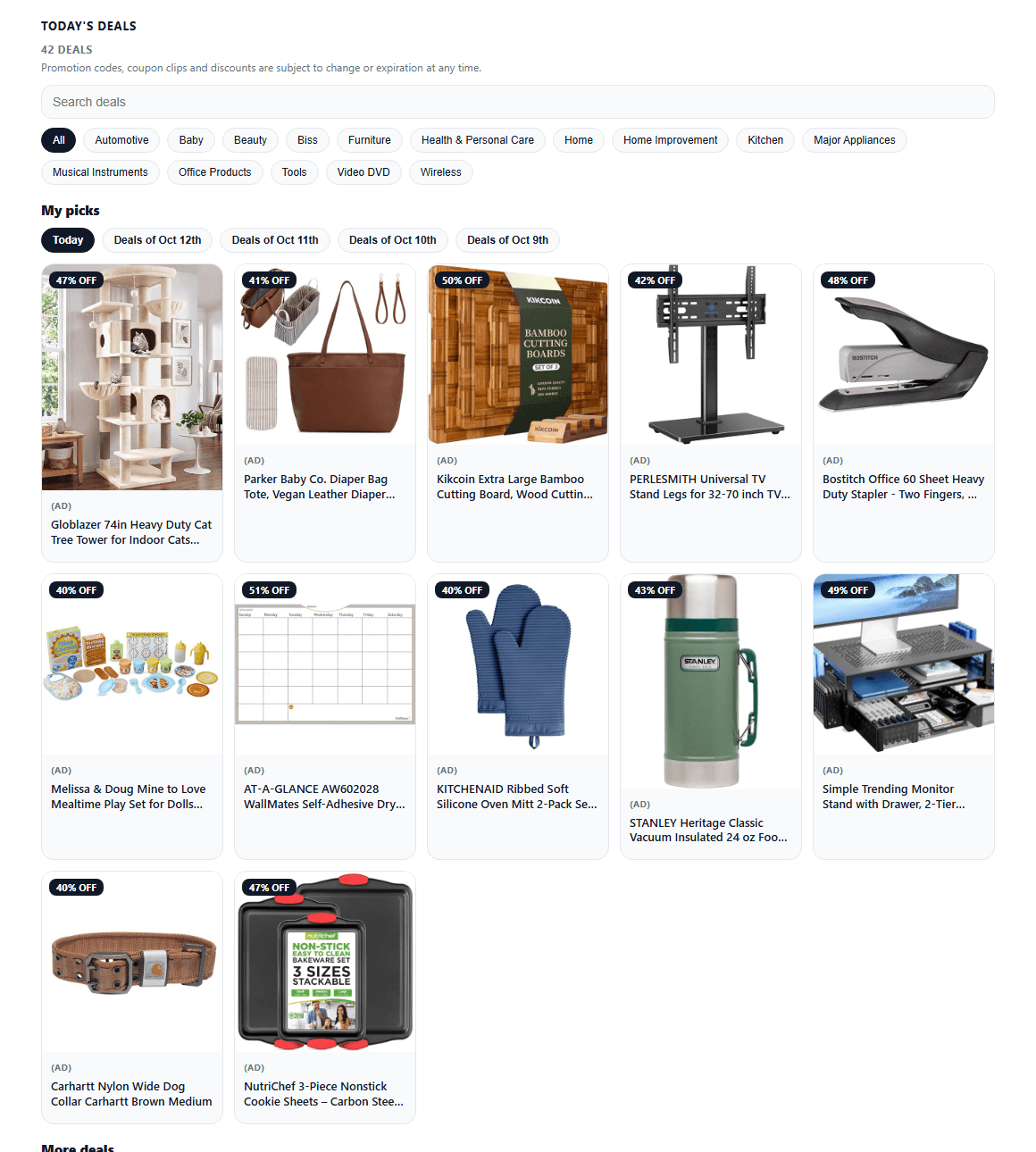
Happy House Deals runs Today's Deals on its Foyer page. Under the section heading it shows the live deal count, a search box, a row of category buttons, and a set of day tabs: Today, then one tab per past day so a shopper can scroll back through the deals they missed. The My picks row holds the account's own choices, More deals fills in the biggest discounts, every tile carries its percent-off badge and an AD label, and deals about to expire get a Last chance tag. None of that is edited by hand. It is the result of the settings below.
Deciding what shows: packs, sources and priority
The defaults are fine. Leave everything alone and More deals shows today's biggest discounts first. The settings underneath are for shaping the page to your audience:
- Deal Packs. Pick packs like Pets, Kitchen or Halloween and More deals only shows those kinds of products. If your audience follows you for one thing, this keeps the page on topic. Walmart deals are found using your packs, so pick at least one pack if you want Walmart on the page.
- Deal source. Show only Creator Connections or SPCC deals if you want the page to lean toward campaigns that pay extra.
- Best sellers only. A switch that drops anything without best-seller signal.
- Deal priority. Decide what ranks first: SPCC, Creator Connections, highest commission, best sellers, or biggest discount. This is the difference between a page that looks good and a page that earns well.
- Mix of stores. Alternate Amazon and Walmart deals instead of grouping them, so the page does not read as one long Amazon list with Walmart tacked on at the end.
Sorting deals into categories
A long deals grid gets scrolled past. Under Look and layout, turn on Sort deals into categories and the page groups deals by the kind of product: Home, Kitchen, Outdoor and garden, Tech, Fitness, Beauty and wellness, Family and pets, Tools and auto. Those are the same categories as your keyword packs, so they line up with how you already think about your niche.
Two display choices:
- Category filter buttons gives shoppers a row of buttons to tap and filter.
- Category buttons and headings also splits your picks and More deals under a heading per category, which reads like a small department store.
Categories to show limits which ones appear, deals that fit nowhere go under Other, and Off keeps the default Amazon categories if you prefer them.
Seasonal mode, handled for you
When a big event is on and you turn on the event mode in a Deals Butler, Influencer Butler asks whether your Foyer page should show those event deals too. Say yes and the page shows only that Deals Butler's event deals until it ends, then goes back to your regular deals on its own. If the page is fed by one Deals Butler, it follows that one. If it uses all of them, each one switches on its own. You can change your answer any time under Today's Deals.
This is the part people forget when they build a deals page by hand: the switch back. A page still shouting about a sale that ended three days ago is worse than no deals page at all.
Why a deals page belongs in your bio
Think about who taps a bio link. They just watched a video or read a caption and they are curious. A static button page gives them one choice: tap the thing you mentioned or leave. A deals page gives them a reason to poke around, and poking around is where the extra order comes from.
It also turns your bio into a destination. Followers learn that the link is worth checking even on days you did not post, which is exactly the habit a deals account wants to build. And because every tile is a tracked Butler Link, the Analytics tab on your Foyer page shows which deals get tapped, from where, and at what time of week, so you can tune your packs and priority with evidence instead of guesses.
A sensible starting setup
If you are turning this on for the first time:
- Turn on Today's Deals and include the stores you actually post for.
- Pick two or three Deal Packs that match your niche. Resist picking all of them.
- Set Deal priority to highest commission or SPCC first if you care about earnings per tap, or biggest discount if your audience is deal hunters.
- Turn on Sort deals into categories with filter buttons.
- Click Refresh now, look at the preview, and adjust the number of rows until the page feels full but not endless.
Then leave it alone. That is the whole point. The Deals Butler feature page covers the harvesting side if you have not set that up yet, and the deals you tune there are the deals your page will show.
Share this post
Tools and guides for this topic
Put this into practice with the tools and walkthroughs that match what you just read.
Let a butler handle the busywork.
Influencer Butler automates the repetitive parts of running your creator business, from accepting Creator Connections campaigns to catching price drops and keeping your outreach moving. Try it free for 14 days.
Start your free trial