Skip the Proxy Subscription: Build Your Own Always-On Raspberry Pi Home Gateway
A residential proxy you rent from a stranger is only as trustworthy as that stranger. Here is how a small always-on computer you own, a Raspberry Pi with a battery backup, can give your cloud PC a home IP address without a monthly bill or a provider to vet.
By The Influencer Butler Team · October 19, 2026 · 9 min read
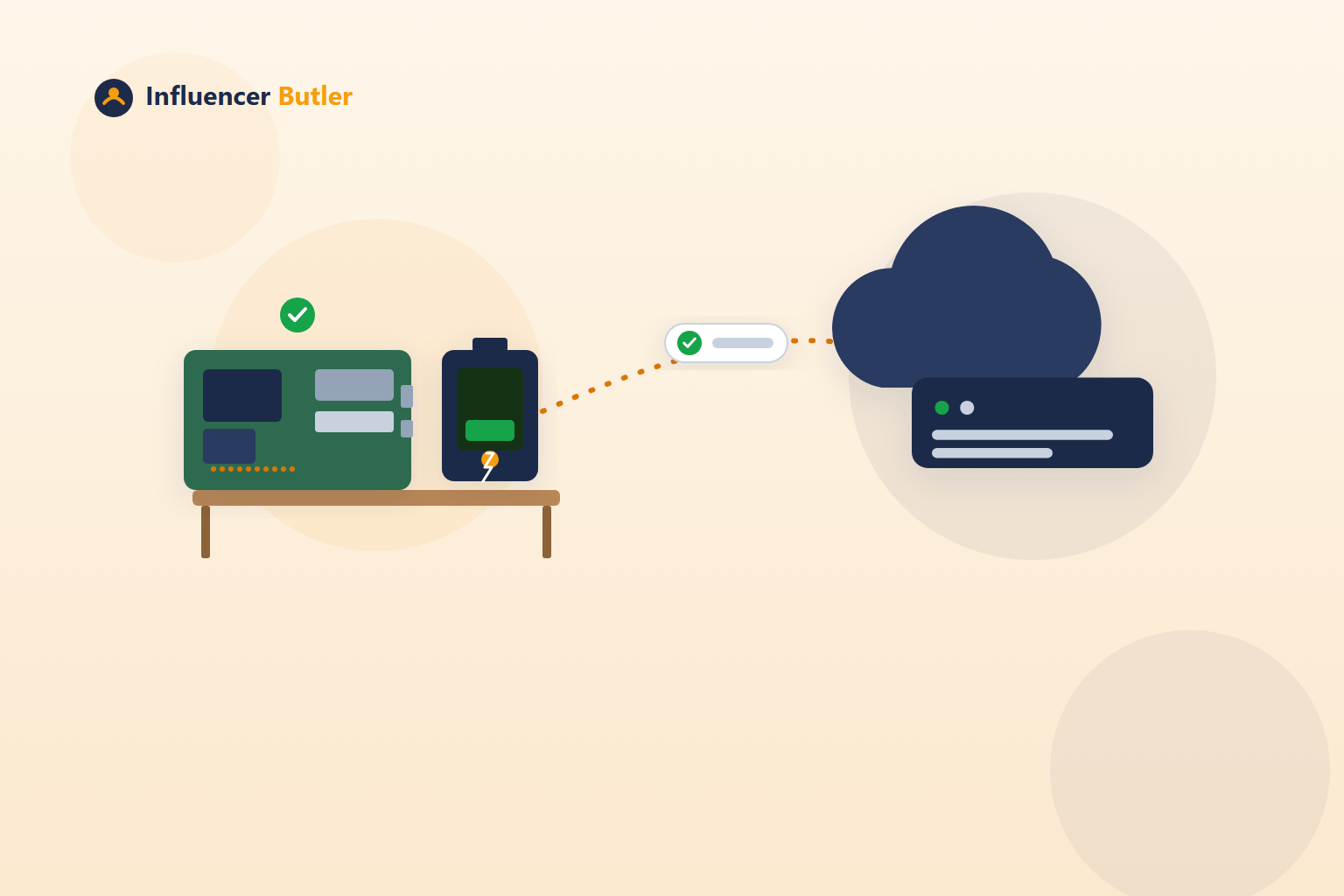
A quick note before we start: this is not a replacement for your cloud PC. If you run Influencer Butler on a rented cloud computer, that computer still needs to exist, because Influencer Butler is a Windows app and the cloud PC is what runs it. What this post replaces is the other recurring thing in that setup: the residential proxy subscription you would otherwise rent from a stranger every month, so your cloud PC's Facebook traffic looks like it is coming from a home connection instead of a data center.
Our last post walked through how to vet a residential proxy provider before you trust one with your accounts. This post is for a simpler case: what if you just did not need a provider at all?
What is an always-on Raspberry Pi home gateway?
A Raspberry Pi is a real, full computer about the size of a deck of cards. It costs a few hundred dollars once, uses about as much electricity as a phone charger, and can run forever on a shelf without anyone touching it.
"Always-on" just means exactly that: it stays powered on and connected to your home internet around the clock, the same way a router or a smart speaker does.
A battery backup (also called a UPS, short for uninterruptible power supply) is a small battery that sits between the wall outlet and the Pi. If your power flickers, or goes out entirely for a while, the Pi keeps running on battery instead of dropping off the network mid-session.
Put those two things together at home, and you have a tiny computer that is always reachable, on your own residential internet connection, that your cloud PC can quietly borrow a connection through. That is the whole idea.
Why build your own instead of renting one?
This is, hands down, the best way to run a cloud PC: it posts through your own home IP address instead of a rented one, so nothing about your traffic depends on a stranger's infrastructure. Here is the honest case for it, trade-offs included.
You never have to vet anyone. Our last post gave you a nine-point checklist for sizing up a proxy provider: is the IP really exclusive, how big is the pool, how is it sourced, what's the replacement policy. With your own Pi, none of that applies, because there is no provider. It is your hardware, on your internet connection, period.
Your traffic never leaves a connection you already trust. It goes from your cloud PC, through your own home router, out to the internet, the exact same path your own laptop's traffic already takes every day.
No surprises from someone else's business. A proxy provider can change its terms, get bought out, have an outage, or quietly start reselling your "exclusive" IP, and you would not necessarily know. A Pi sitting on your own shelf does not do any of that.
It is a one-time cost, not a forever bill, eventually. Here is the honest math: the hardware below runs a little over $300 one time. A cheap residential proxy runs $2 to $3 a month. On pure dollars, that is a long payback, over a decade. If $2 to $3 a month is nothing to you, a vetted proxy provider is genuinely the simpler choice. This path is for people who would rather own the whole chain once and never think about a third party touching their traffic again.
The battery backup keeps your home IP from vanishing mid-run. A short power blip would otherwise drop the Pi off the network and interrupt whatever your cloud PC was doing through it. The UPS rides through that.
What you'll need
- A Raspberry Pi 5 kit (board, case, power supply, and a microSD card with the operating system)
- A UPS (battery backup) built for the Raspberry Pi 5
- Your home router and internet connection (no port forwarding and no static IP needed, we'll explain why)
- A free Tailscale account. (Tailscale is a free app that quietly and securely connects your own devices to each other over the internet, without you touching your router's settings.)
- Your Windows cloud PC already running Influencer Butler, from our free cloud PC guide
- About an hour, start to finish
Step-by-step setup
1. Flash the operating system onto the microSD card.
Download the free, official Raspberry Pi Imager on the computer you already use every day.
- On Windows: run the downloaded installer, then open Raspberry Pi Imager.
- On Mac: open the downloaded .dmg, drag Raspberry Pi Imager to Applications, then open it.
Insert the microSD card (using the USB card reader your kit includes), choose your Raspberry Pi model and "Raspberry Pi OS Lite (64-bit)" as the operating system (Lite skips the desktop screen you will never use, since this Pi runs headless, meaning without its own monitor, keyboard, or mouse). Before you click write, click the gear icon for advanced options and set:
- A hostname you'll recognize, like
homegateway - Enable SSH (a secure way to type commands into another computer over your network) and set a username and password
- Your wifi name and password, if the Pi will connect over wifi instead of an ethernet cable
Click save, then write. This takes a few minutes.
2. First boot and connect over SSH.
Put the microSD card in the Pi and power it on. Give it about a minute to start up, then connect to it from your own computer:
- On Windows: open PowerShell and type
ssh username@homegateway.local(using the username and hostname you set above). - On Mac: open Terminal and type the same command.
Type yes if asked to trust the connection, then enter the password you set. You are now controlling the Pi entirely from your own keyboard, even though it has no screen of its own.
3. Install Tailscale on the Pi.
In that same SSH window, run:
curl -fsSL https://tailscale.com/install.sh | sh
sudo tailscale up
It will print a link. Open that link in a browser and sign in (Google, Microsoft, or email all work) to connect the Pi to your private network.
4. Install Tailscale on your Windows cloud PC too.
Download it from tailscale.com/download, install it, and sign in with the same account. Your cloud PC and your Pi can now reach each other privately and securely, as if they were on the same home network, with nothing exposed to the public internet and no router changes required.
5. Find the Pi's Tailscale address.
Back in the SSH window, run tailscale ip -4 and note the address it shows (it will look like 100.x.x.x).
6. Turn the Pi into a proxy.
Still in the SSH window, run:
sudo apt update && sudo apt install tinyproxy -yTinyproxy is a small, well-established piece of free software that turns any Linux computer into the kind of proxy Influencer Butler already knows how to use. Open its settings file with sudo nano /etc/tinyproxy/tinyproxy.conf, and set a username and password for it by adding these two lines near the top:
BasicAuth yourusername yourpasswordSave (Ctrl+O, Enter) and exit (Ctrl+X), then restart it with sudo systemctl restart tinyproxy.
7. Point Influencer Butler at it.
On your Windows cloud PC, open Influencer Butler, go to Settings, and find the Residential Proxy card, the same one from our cloud PC guide. Enter the Pi's Tailscale address as the host, 8888 as the port (Tinyproxy's default), and the username and password you just set. Click Test Connection.
8. Connect the battery backup.
Follow the instructions included with your UPS to sit it between the wall outlet and the Pi's power input. From now on, a power blip at home does not take your gateway offline.
9. Confirm it.
Back in Settings, the Current connection row should now show a home-style address instead of a data center one. Use the Re-check button any time you want to confirm it again.
One more safety net, in case it drops anyway
A UPS covers power blips, but it cannot cover everything, your home internet itself going down, your router rebooting, or Tailscale briefly losing its connection. If the Pi ever does drop off mid-run, the risk is not just a pause, it is your cloud PC quietly falling back to posting from its own data center IP without anyone noticing, which is the one outcome this whole setup exists to avoid.
Influencer Butler now watches for exactly that. In Settings, under the same Residential Proxy card, Stop everything and email me if this proxy disconnects is on by default. If the connection to your Pi is lost, or your posts would otherwise leave from this machine's own IP instead of your home one, Influencer Butler stops every running butler immediately, opens no browser, and emails you. Nothing restarts on its own, you come back, confirm the Pi is reachable again, and click Run when you are ready.
Our pick
Raspberry Pi 5 kit: CanaKit Raspberry Pi 5 Starter Kit PRO, 8GB RAM (128GB Edition) from Amazon, $259.99. It is Amazon's top-rated pick in this category (4.7 stars, 1,400+ ratings) and includes the Pi 5 board, a 128GB microSD card pre-loaded with the OS, a case, cooling fan, heatsink, and official power supply. You will not need the included HDMI cables, keyboard, or mouse for this headless setup, but it is genuinely handy to have them on the shelf in case you ever need to plug in a monitor to troubleshoot.
Quick note: that's an affiliate link, so I may earn a small commission at no extra cost to you.
Battery backup: Argon PWR UPS for Raspberry Pi 5 (5,000mAh) from Amazon, $75.00. It is built specifically for the Raspberry Pi 5, delivers power over USB-C, and has a physical on/off switch and a battery level display, no soldering required.
Quick note: that's an affiliate link too, so I may earn a small commission at no extra cost to you.
Extra hardware you will need beyond those two: the Argon PWR UPS ships with nothing but the unit itself and an instruction manual, no cables included, so plan on buying two small, cheap extras alongside it:
- A USB-C power adapter to plug the UPS itself into the wall (check the listing for the exact wattage it recommends)
- A short USB-C cable to run power from the UPS to the Pi
The takeaway
This is more setup than pasting four fields into a form, and it is not for everyone. But if you read our last post on vetting proxy providers and thought "I would honestly rather just not," a Raspberry Pi with a battery backup is the version of this where there is no one left to vet. One afternoon of setup, and you own the whole chain from your cloud PC to the internet.
Want the fuller picture first? Start with why Influencer Butler runs as a desktop app, then what to ask before trusting any proxy provider, then come back here when you are ready to skip that question entirely.
Share this post
Tools and guides for this topic
Put this into practice with the tools and walkthroughs that match what you just read.
- Free courseFree Amazon Influencer courseA free step-by-step course from first storefront to first commissions.
- Free toolAll free creator toolsCalculators and generators for Amazon and social creators, no signup.
- Free extensionFree Chrome extensionMoney signals on the Amazon pages you already browse, free.
Let a butler handle the busywork.
Influencer Butler automates the repetitive parts of running your creator business, from accepting Creator Connections campaigns to catching price drops and keeping your outreach moving. Try it free for 14 days.
Start your free trial