Facebook's Notifications Popup Is Blocking Your Butler: Here Is the Two-Minute Fix
If your Facebook butler stops loading or quietly fails to post, a little Chrome popup asking to show notifications is usually the culprit. Here is how to clear it for good, in about two minutes.
By The Influencer Butler Team · July 17, 2026 · 7 min read
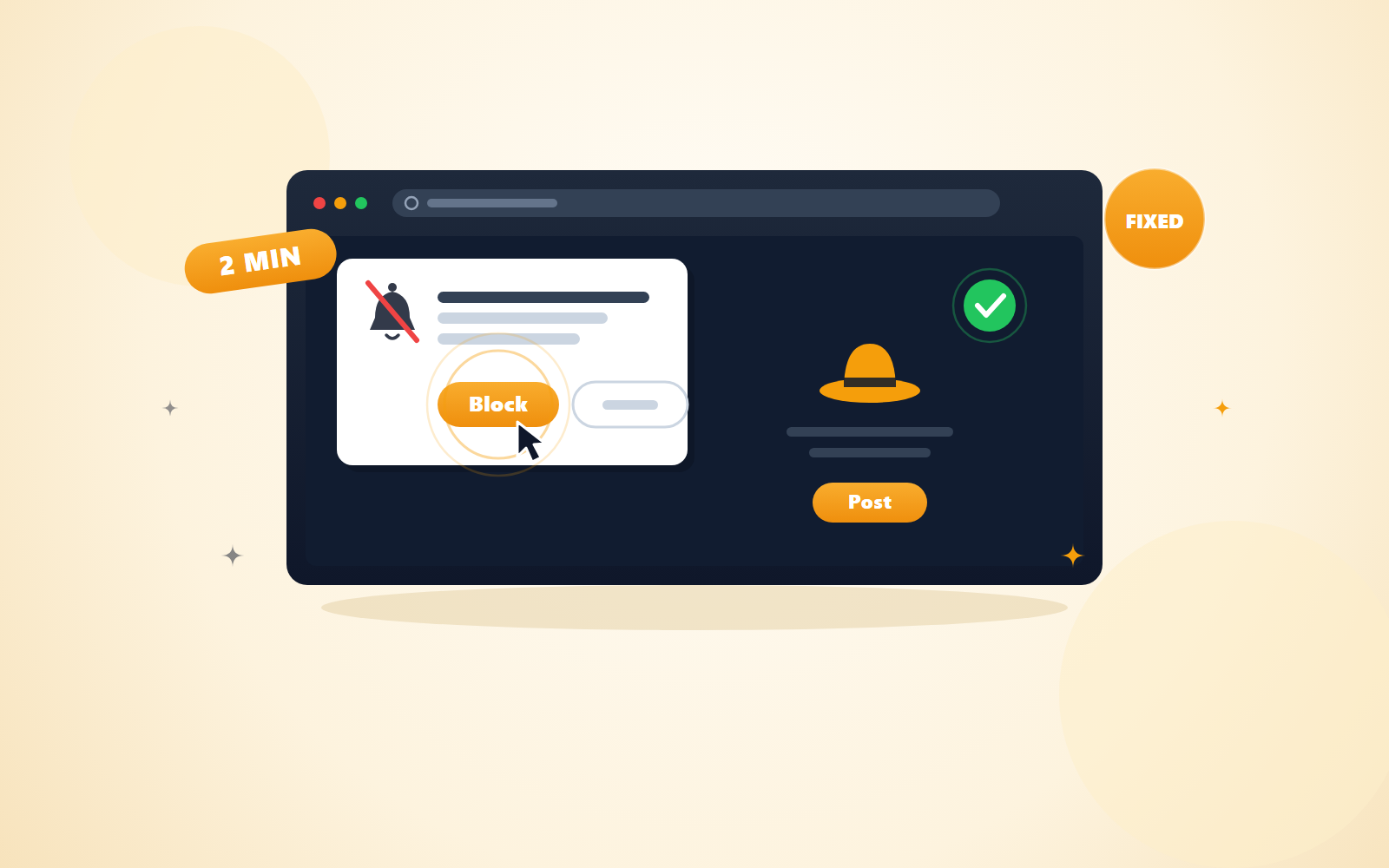
If your Facebook butler suddenly stopped posting, or the browser window opens and then just sits there doing nothing, there is a very good chance the problem is not your account, your posts, or your settings. It is a small grey box in the top-left corner of Chrome that says "facebook.com wants to show notifications".
That little popup is the whole problem. Here is why, and how to get rid of it for good.
Why one tiny popup stops everything
Your butler drives a real Chrome window. It clicks buttons, types into boxes, and presses Post, exactly like a person would.
When Chrome shows that notifications permission prompt, it floats on top of the page and Chrome will not let anything underneath it be clicked until you answer it. Your butler is not looking for a permission box. It is looking for the Post button. So it waits, the page never becomes clickable, and the run fails to load or times out.
The frustrating part: the popup is attached to the browser profile your butler uses, not to your normal everyday Chrome. So you have probably never seen it. It is sitting there, in a window you never look at, quietly blocking everything.
The fix is to open that exact profile yourself, one time, and tell Chrome Block. Chrome remembers your answer forever, and the butler never sees the popup again.
Step 1: Fully quit Influencer Butler
This step is not optional, and it is the one people skip.
Chrome puts a lock on a profile folder while it is using it (it is a file literally called SingletonLock). Only one Chrome can hold that lock at a time. If Influencer Butler is running, it is holding the lock on the profile, and the window you are about to open will either refuse to start or open a different, empty profile that is useless for this.
So: quit the app properly. Closing the window is often not enough, because Influencer Butler keeps running in the background.
On Windows: find the butler icon in your system tray (bottom-right of your screen, you may have to click the little arrow to see hidden icons), right-click it, and choose Quit.
On Mac: look for the butler icon in the menu bar at the top-right of your screen, click it, and choose Quit. If you only see the app in the Dock, right-click (or Control-click) the Dock icon and choose Quit there instead.
Give it about five seconds to let go of the lock.
Step 2: Open that exact profile in Chrome
On Windows: open PowerShell. Click Start, type powershell, and press Enter. Then paste this in and press Enter:
& "C:\Program Files\Google\Chrome\Application\chrome.exe" --user-data-dir="$env:APPDATA\InfluencerButler\browser-profiles\sites\dd-fb-default"On Mac: open Terminal. Press Cmd+Space, type terminal, and press Enter. Then paste this in and press Enter:
"/Applications/Google Chrome.app/Contents/MacOS/Google Chrome" --user-data-dir="$HOME/Library/Application Support/InfluencerButler/browser-profiles/sites/dd-fb-default"A normal Chrome window opens. It will look a little bare: no bookmarks, no extensions, no themes. That is expected and it is exactly right.
What matters is that this window is carrying the exact Facebook login session your butler posts with. Same cookies, same signed-in account, same everything. Whatever you do in this window, the butler inherits.
If Chrome does not open, jump down to "If Chrome is not where the command expects" below and adjust the path.
Step 3: Tell the popup to go away, permanently
Go to facebook.com in that window.
Sooner or later (usually right away) Chrome will show the permission box in the top-left, asking to show notifications. Click Block. On some versions of Chrome the button says Don't allow. Either one is the correct answer.
That is it. Chrome saves that choice into this profile, and the prompt will never come back.
If you already clicked Allow, or you do not see the popup at all
If the popup does not appear, it may be because someone already answered it, and the answer got saved as Allow. Facebook can then push notification bubbles into the window, which causes the same kind of blocking. Clear it like this:
- Click the icon on the left of the address bar (a lock, a slider icon, or a small globe, depending on your Chrome version).
- Click Site settings.
- Find Notifications in the list.
- Set it to Block.
While you are in there, it is worth setting Notifications to Block even if it currently says "Ask (default)". That way the prompt can never appear again, no matter what Facebook does later.
Step 4: Close Chrome and reopen the butler
Close the Chrome window completely, so it releases the profile lock the same way the app had to in Step 1.
Now open Influencer Butler again and run your Facebook butler. It picks up whatever state you left behind, including your Block choice. The popup is gone, the page is clickable, and your butler gets on with it.
If Chrome is not where the command expects
The command in Step 2 assumes Chrome is installed in the usual place. If you got an error saying the file does not exist, your Chrome is somewhere else.
On Windows, try these paths instead, swapping the part in quotes:
C:\Program Files (x86)\Google\Chrome\Application\chrome.exe%LOCALAPPDATA%\Google\Chrome\Application\chrome.exe, which in PowerShell you write as$env:LOCALAPPDATA\Google\Chrome\Application\chrome.exe
On Mac, Chrome almost always lives in /Applications, but if you installed it just for your user it may be here instead:
$HOME/Applications/Google Chrome.app/Contents/MacOS/Google Chrome
No Chrome at all? Brave and Edge work the same way, and Influencer Butler will use whichever of them it finds if Chrome is not installed. Just point the command at that browser instead; the --user-data-dir part stays exactly the same. On Windows that means the browser's .exe. On Mac, use:
- Brave:
/Applications/Brave Browser.app/Contents/MacOS/Brave Browser - Edge:
/Applications/Microsoft Edge.app/Contents/MacOS/Microsoft Edge
A note for cloud PC users
If you run Influencer Butler on a cloud computer, you are more likely to hit this, simply because that machine's Chrome profile is brand new and has never been asked the notifications question before. The steps above are identical: quit the app, run the command, click Block. If you have not set up a cloud machine yet and are curious, we walk through the whole thing in Run Influencer Butler on a free cloud PC.
The short version
- Quit Influencer Butler completely, from the tray (Windows) or the menu bar (Mac).
- Run the PowerShell (Windows) or Terminal (Mac) command from Step 2.
- Go to facebook.com and click Block on the notifications popup.
- Close Chrome, reopen the butler.
Two minutes, once, and it never bothers you again.
While you are here, this is also the profile that holds your Facebook login, so the same command is how you check whether your butler is still signed in, sign into a different account, or clear something out. Worth keeping in your back pocket. If you are still setting up your posting destinations, here is how to auto-post your daily deals to Facebook, Telegram and Reddit.
Share this post
Tools and guides for this topic
Put this into practice with the tools and walkthroughs that match what you just read.
- Free courseFree Amazon Influencer courseA free step-by-step course from first storefront to first commissions.
- Free toolAll free creator toolsCalculators and generators for Amazon and social creators, no signup.
- Free extensionFree Chrome extensionMoney signals on the Amazon pages you already browse, free.
Let a butler handle the busywork.
Influencer Butler automates the repetitive parts of running your creator business, from accepting Creator Connections campaigns to catching price drops and keeping your outreach moving. Try it free for 14 days.
Start your free trial