Collection Builder: Turn an Amazon Idea List Into a Walmart Collection
Paste an Amazon idea list and Collection Builder finds matching Walmart products, writes a similar name and description, and builds the collection on your Walmart Creator storefront after you review it.
By The Influencer Butler Team · October 13, 2026 · 8 min read
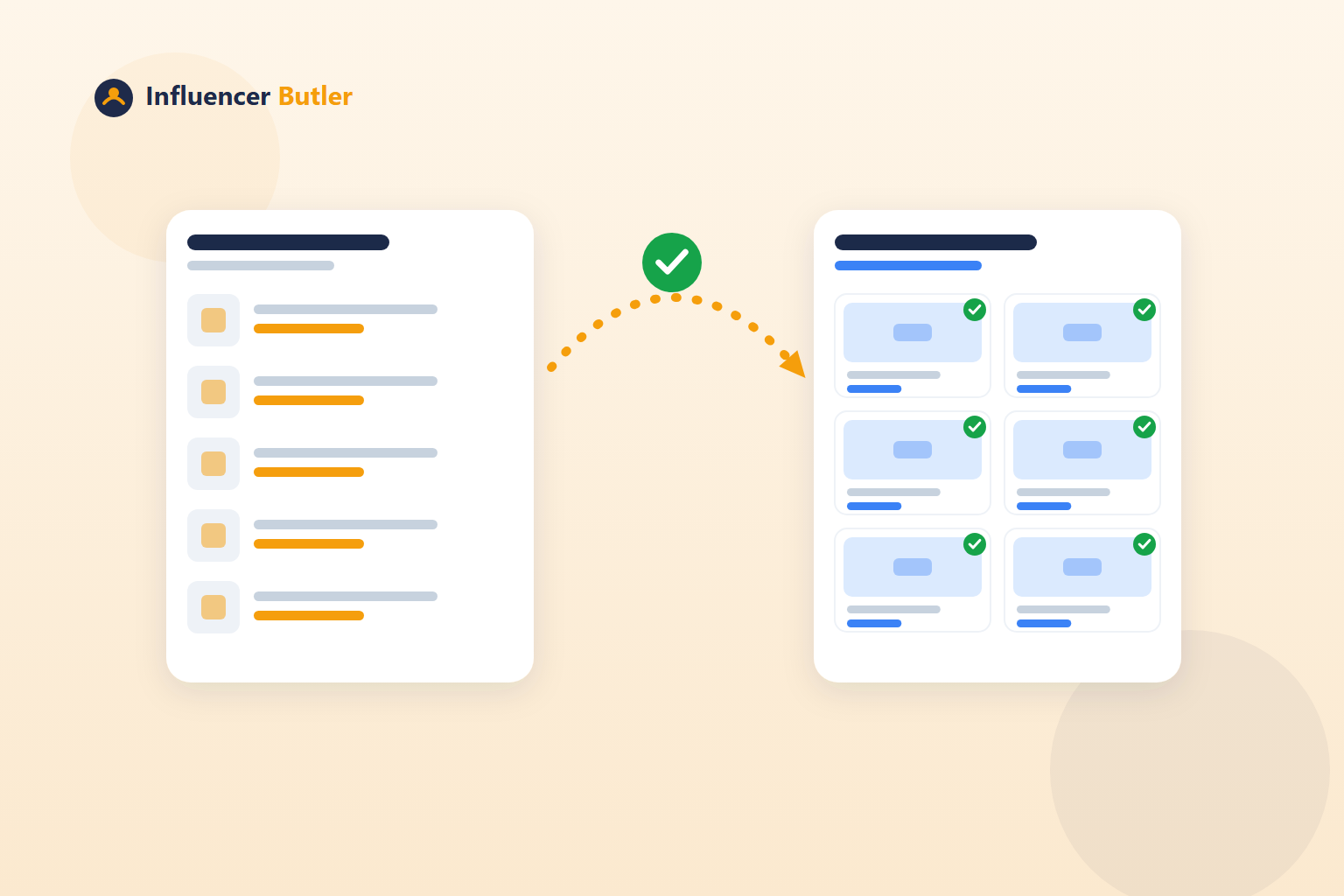
Your Amazon idea lists took real work. You picked the products, wrote the descriptions, ordered them so the best ones sit at the top. Then Walmart Creator gave you a second storefront, with collections that work the same way, and the thought of rebuilding every list by hand on a second site is enough to make most creators never bother.
Collection Builder is the tool in Walmart Butler that does the rebuilding. You paste an Amazon list, it finds a Walmart product for each item, writes a similar name and description, and builds the collection on your Walmart Creator storefront. You review everything before it creates anything. The step-by-step is in the Collection Builder tutorial; this post walks through what it actually does and how to get good collections out of it.
What happens when you paste a list
Collection Builder reads your public Amazon list: its name, its description, and every product on it. No Amazon sign-in is needed for this part, because the list is already public.
Then it goes looking on Walmart, one item at a time:
- When the identical product exists on Walmart, it uses that. Same item, different store.
- When it does not, it picks the closest style that shoppers actually buy, judged by strong ratings and lots of reviews. Not just the first search result.
While it matches, it writes a collection name and description (up to 300 characters) that feel like the original without being a copy. If you would rather keep your exact wording, turn on Keep my Amazon wording and it copies the name and description as they are.
For the best picks and wording, connect OpenAI under API Integrations. Without it, Collection Builder still works using a simpler ranking.
The three matching modes
The Matching setting decides how strict to be, and it is worth choosing on purpose:
- Both (recommended). Uses the identical Walmart product when it exists and fills the rest with similar picks. This is the mode that produces full collections.
- Same product only. Keeps only identical items. Some rows will come back empty, but every item is exactly what was on the Amazon list. Use this for lists where the specific product is the point, like a "my exact camera setup" list.
- Similar picks only. Always searches for the closest popular item, even when the identical one exists. Useful when you want the Walmart version of a list to feature Walmart's own bestsellers rather than mirror Amazon.
Changed your mind after the first pass? Change Matching and click Match again. Your name and description edits are kept.
The review table is where the money is
After Import and match, the summary tiles tell you how many items matched exactly, how many are similar picks, and how many found nothing. Then you get a review table, and this is the part to slow down on.
Every row shows the Walmart pick and a Rate column: the commission rate that product's Walmart category is expected to pay, from the rate card under Walmart Butler Settings. Apparel and beauty pay the most. Grocery and household items pay nothing. A collection full of paper towels and pantry staples can be a perfect match for your Amazon list and still earn you nothing on Walmart.
So use the table:
- Untick anything you would not stand behind, or anything in a zero-rate category that is only there because it matched.
- Swap for another on any row to pick a different Walmart product. If the similar pick is close but not quite right, this is faster than editing after the fact.
- Edit the name and description so they read like you.
Nothing is created on Walmart until you click Create collection. Turn on Watch it run in the top bar if you want to see your browser build it.
Stock is checked right before it builds
Right before a collection is built, every chosen product gets a fresh stock check. Anything out of stock on Walmart is left out and listed on the result card, so you do not launch a collection with a dead item in it.
For collections that already exist, tick them in Your Walmart collections and click Remove out-of-stock items. Collection Builder uses Walmart's own cleanup option on each collection, so the out-of-stock badge Walmart shows clears.
Before you start
- Sign in to Walmart Creator once, from Walmart Butler. Your session is saved and shared with the other Walmart tools, so you are not signing in for every collection.
- Have your Amazon list link ready. It looks like
amazon.com/shop/yourname/list/followed by letters and numbers. A storefront link works for the bulk mode, which is covered in its own post. - Collection Builder remembers which lists you have already turned into collections and warns you before making a second one, so duplicates are hard to create by accident.
Which lists to convert first
Not every Amazon list deserves a Walmart twin on day one. Start with:
- Lists that already convert on Amazon. The products are proven. If they exist on Walmart, the collection should work there too.
- Lists in categories Walmart pays well for. Apparel, beauty, and similar. Check the Rate column and prioritize collections where most rows earn.
- Lists with evergreen themes. Seasonal lists are fine, but a "kitchen essentials under $30" style list keeps earning long after you built it.
Skip, or run in Same product only mode, any list where the exact item matters so much that a similar pick would feel like a bait and switch to your audience.
What you end up with
Every collection you build shows up in the Your Walmart collections card, newest first, with its Walmart link. From there you can post collections to Facebook or drop them into your Deals queue, which is its own post, and you can run the stock cleanup whenever Walmart flags something.
The bigger picture: Walmart Creator is a storefront most creators leave half empty, and collections are the shelf space. Collection Builder lets you fill that shelf space from work you already did, with a review step that keeps you in control and a rate column that keeps you honest about what will actually pay. If you have five good Amazon lists, you are five pastes away from a Walmart storefront that looks like you meant it.
Share this post
Tools and guides for this topic
Put this into practice with the tools and walkthroughs that match what you just read.
- FeatureStorefront ButlerKnow your storefront inside and out: items, lists, and what is moving.
- Free courseFree Amazon Influencer courseA free step-by-step course from first storefront to first commissions.
- Free toolAll free creator toolsCalculators and generators for Amazon and social creators, no signup.
Let a butler handle the busywork.
Influencer Butler automates the repetitive parts of running your creator business, from accepting Creator Connections campaigns to catching price drops and keeping your outreach moving. Try it free for 14 days.
Start your free trial