Relink Butler, Explained: Rewrite Years of Old Affiliate Links Without Touching One by Hand
Your affiliate setup changes, you switch tag services or a provider shuts down, and suddenly years of posts, videos, and lists are pointing at the wrong kind of link. Relink Butler finds every one of them, shows you a diff before it touches anything, and only rewrites what you approve. Here is exactly how it works, and why it is still labeled beta.
By Liz Dean · November 7, 2026 · 7 min read
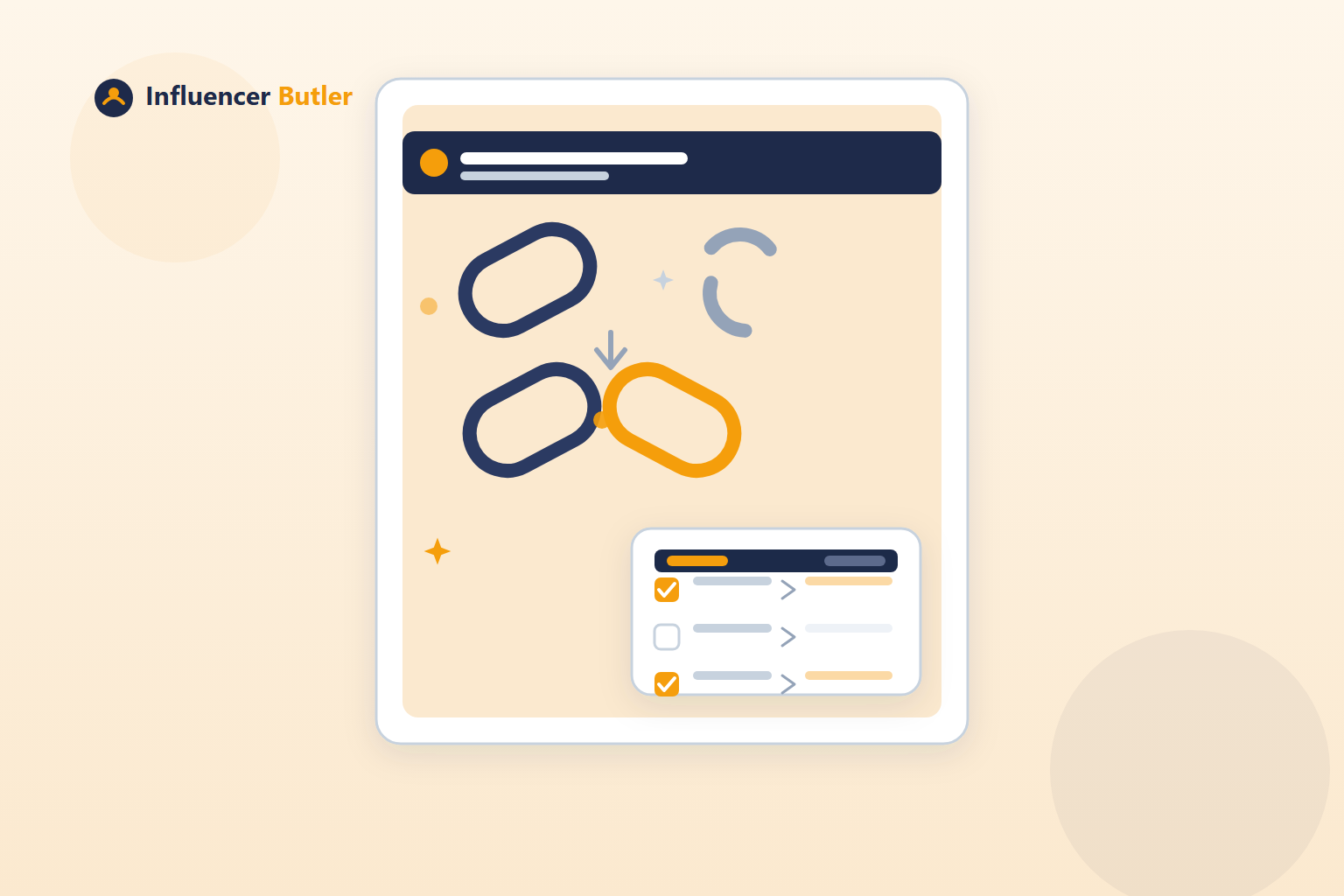
Your affiliate setup is never going to stay the same for years. You start with raw Amazon tags because that is the fastest way to get paid, then you move to a link cloaking or management service because the reporting is better, or a network you were using shuts down, or you just want cleaner, shorter links that do not scream "affiliate link" in the caption. Any one of those changes is a reasonable thing to do. The problem is what it does to everything you already published.
Every blog post, every YouTube description, every pin, every list you have built over the years still points at the old link. Not a handful of them, all of them. Going back through years of content by hand, finding each old link, and swapping it for the new one is not a task a person actually does. It gets postponed indefinitely, which means your older content, often your best-performing content, keeps earning at the old rate (or stops earning at all if a provider shut down) while everything new uses the new setup. Relink Butler exists to close that gap without you opening a single old post yourself.
Four ways to rewrite a link, because "rewrite" means different things
Relink Butler is not one blunt find-and-replace tool wearing a fancy name. It has four distinct modes, because the kind of change you are making decides what actually needs to happen to the link.
- Host change. This swaps the link's host, its domain, while keeping the ASIN exactly the same. You reach for this when you are migrating from one provider's domain to another's but the underlying product reference does not change, just where the click is routed through.
- Retag. A simple, inline affiliate-tag swap on the link itself. This is the one you want when nothing about your setup is really changing, you just switched your Amazon Associates tag (a new one, a new sub-tag for tracking, whatever the reason) and every old link still needs to carry the new one instead of the old.
- Remint provider. This is the biggest of the four. Instead of editing the existing link, it mints a brand-new link through a different link network or provider entirely, the example in the app is Levanta. You use this when you are not just tweaking a tag, you are moving your whole affiliate relationship to a new network, and the old link format cannot just be edited into the new one, it has to be replaced with a freshly generated one.
- Find-replace. The escape hatch. A raw string swap for anything the other three modes do not cover: a weird legacy URL pattern, a one-off domain you used for exactly one campaign, whatever does not fit the other three boxes.
If you are only changing where a link routes, host change is enough. If you are only changing the tag on the end of an otherwise-identical link, retag is enough. If you are leaving one network for another, you need remint. And if none of that describes your situation, find-replace will.
Where it actually reaches: four scopes, two different mechanisms
Before you rewrite anything, you pick a scope, where Relink Butler should go looking for links to change. There are four:
- Deals Butler posts. Handled entirely in-app. No browser opens, nothing leaves the desktop app, because this is data the app already owns directly.
- YouTube video descriptions.
- Pinterest pins.
- Benable lists.
That last three are a different kind of operation. YouTube, Pinterest, and Benable are not data the app stores itself, they live on someone else's platform, so rewriting a link there means Relink Butler opens a real Chrome browser, navigates to the actual video, pin, or list, and edits the link in place the same way you would if you were doing it by hand, just automated. That distinction matters for expectations: Deals Butler posts rewrite fast and quietly, the other three scopes take longer because a browser is genuinely doing the work, one page at a time.
The workflow is deliberately slow, and that is the point
Here is where Relink Butler earns some trust: it does not just go rewrite things because you told it to. The workflow is strict, in a good way.
First, Preview. This builds a full diff table of every single link it would change, old link next to new link, for every post, video, pin, or list in scope. Nothing has been touched yet. This is just a report.
Then, row by row, you approve. Nothing is pre-ticked. Every row starts unselected, and you have to actively select each one you actually want applied. You can scan the whole diff table, skip anything that looks wrong, and only check the rows you have actually confirmed.
Only after that do you hit Apply approved, and that is the step that overwrites the old link in place, for the rows you selected, and only those rows.
There is no undo once you apply. That sounds like a liability, but it is really the reason the preview-and-approve step exists in the first place instead of a one-click bulk rewrite. A tool that let you rewrite hundreds of links across years of content with a single irreversible click would be far more dangerous than one that makes you look at a diff table first and check boxes one at a time. The friction is the safety mechanism.
It is labeled beta, and that is worth taking seriously
Relink Butler is explicitly tagged beta in the app, with its own in-app warning. That is not a formality. It is a real, working, shipped feature, people are using it to migrate real affiliate setups right now, but beta means exactly what it always means: test it carefully, start small, and do not assume every edge case in every scope is already smoothed out. The preview-approve-apply workflow is what makes that reasonable to do. Because nothing is irreversible until you explicitly approve a row and then explicitly apply it, you can run a small batch first, check that the rewritten links actually work the way you expect, and only then scale up to the rest of your content. Given that there is no undo, that caution is not optional, it is the whole reason the workflow is shaped the way it is.
A concrete run-through
Say you have been running on raw Amazon tags for years and you decide to move to a link cloaking and management service like Geniuslink, because the click reporting is better than anything raw tags give you. You open Relink Butler, pick Remint provider since you are moving to a genuinely different kind of link, not just swapping a tag. For scope, you choose Deals Butler posts only, since that keeps the first run entirely in-app with no browser involved, and it is where most of your links actually live.
You click Preview. The app builds a diff table: 40 links across your Deals Butler history, each row showing the old raw Amazon link next to the new Geniuslink-routed link it would become. You go through the table and recognize that a handful of those rows are for posts you have since taken down or products that are out of stock anyway, so there is no point rewriting those. You approve 20 of the 40, the ones tied to posts that are still live and still getting traffic. You click Apply approved, and those 20 links update in place. The other 20 stay exactly as they were, untouched, available to approve later once you have confirmed the first batch is behaving the way you expect.
That is the whole shape of it: one tool, four ways to describe what "rewrite" means for your situation, four places it is willing to go looking, and a deliberately slow approval step standing between a diff table and anything actually changing. For a job that used to mean manually hunting through years of your own content, that is a meaningful amount of your time back, and it still runs in a way you can trust in beta.
Share this post
Tools and guides for this topic
Put this into practice with the tools and walkthroughs that match what you just read.
Let a butler handle the busywork.
Influencer Butler automates the repetitive parts of running your creator business, from accepting Creator Connections campaigns to catching price drops and keeping your outreach moving. Try it free for 14 days.
Start your free trial