Collab Butler, Explained: A Kanban Board for Every Brand Deal You're Juggling
Brand deals start in an email, move to DMs, and then live nowhere at all until a payout goes missing. Collab Butler is a Kanban-style board that tracks every collab from first contact to getting paid, with real stage names, drag-free list and board views, color-coded tags, and a tax export at year end.
By Liz Dean · October 30, 2026 · 7 min read
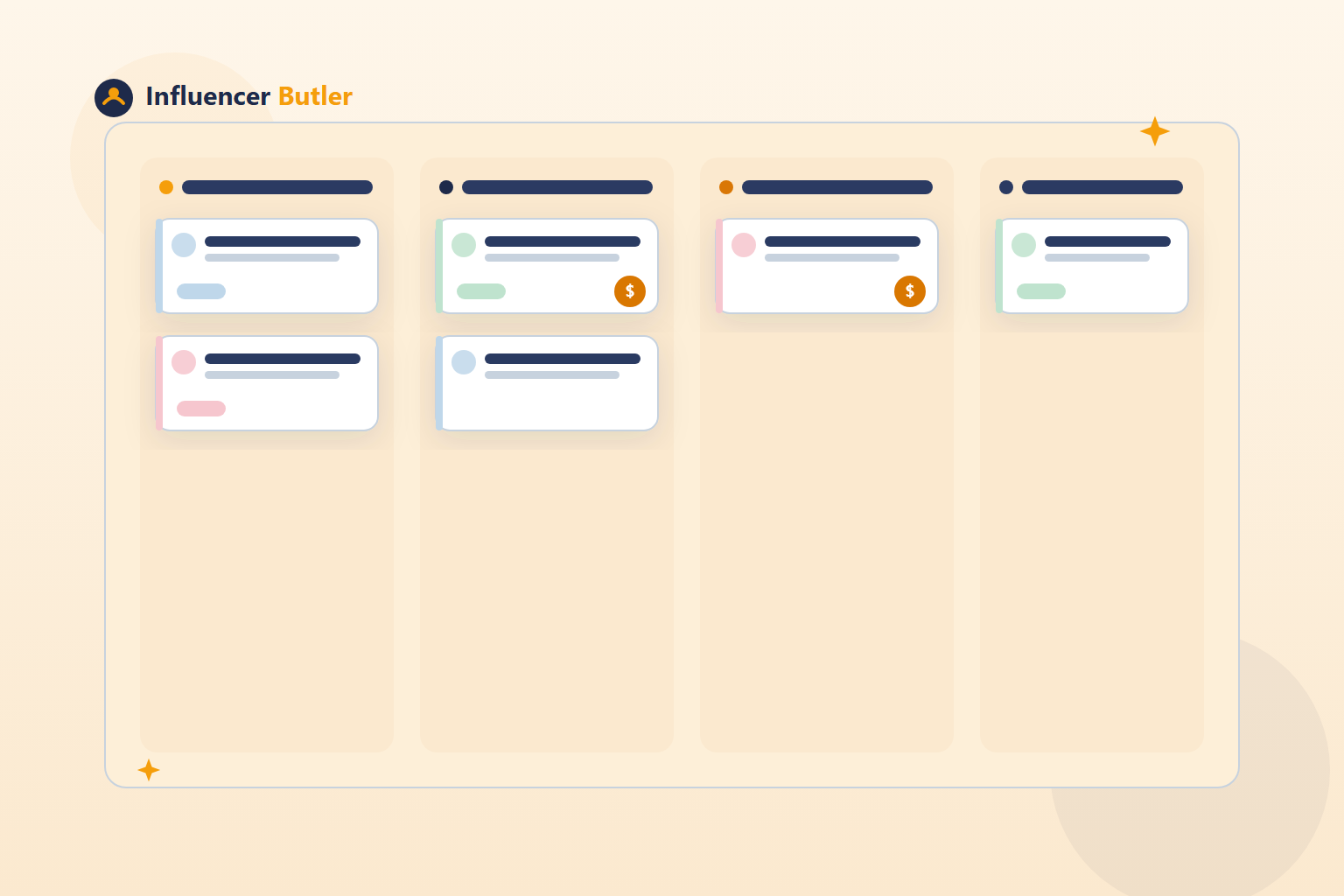
Here is how most brand deals actually live right now: the pitch is in an email, the brief got attached to a DM three days later, the deadline is a date you half-remember, and the payout amount is whatever you can recall from skimming the thread a second time. Nothing is wrong with any single piece of that. The problem is that none of it lives in the same place, so the first thing that falls through the cracks is usually money: a deal you shipped and never got paid for, or a deadline you missed because it was buried under forty other emails.
Collab Butler is the fix: a Kanban-style board, one card per brand collab, that tracks the deal from first contact all the way to getting paid.
Adding a card and moving it through real stages
A new collab starts as a card with one required field: brand name. Everything else, you can fill in now or later. The card defaults into the Negotiating column, which is the honest starting point for most deals: you have a brand talking to you, but nothing is locked yet.
From there, a card moves through the stages that match how a collab actually unfolds: Negotiating, Shipped (the product is on its way to you), In Progress (you have it and you're working on the content), Submitted (draft is in front of the brand for approval), Published, and Archived. These are the literal defaults, and if your workflow does not match them exactly, you can rename them in settings. Each stage also carries its own overdue window baked in, so the board can flag a card as late without you setting a timer by hand: In Progress gives you 7 days before it flags overdue, most other active stages flag after 3, and Published and Archived carry no overdue window at all, because the work is already done.
You do not have to drag a card to move it, either. Every card, in Board view or List view, has a small stage dropdown right on it. Drag-and-drop is there if you like the physical feel of sliding a card across columns, but it is never required.
Board or List, whichever way you think
Collab Butler gives you two views of the same data, and the toolbar remembers whichever one you used last.
Board view is the classic Kanban layout: columns for each stage, cards you can drag between them, good for a visual read of where everything sits at a glance.
List view compresses the same collabs into a one-row-per-deal table: brand, an inline stage dropdown, tags, and deadline, all in a compact strip. It is fully click-driven, no dragging needed, and it is the better fit once you have more than a handful of deals running at once and want to scan them the way you'd scan a spreadsheet.
Switch between them depending on the day. A quick visual check of what is piling up in Negotiating favors Board. Working through fifteen deadlines in a row favors List.
Tags: the layer that tracks production without new columns
Stages tell you where a deal sits in the relationship. Tags tell you what is actually happening inside that stage, and they are free-form and color-coded, dragged onto a card from a tag shelf. A card sitting in Shipped might carry "Sample received." A card in In Progress might pick up "Editing" and then "Reel posted" as the work actually happens, without you ever needing a new column for every micro-step of production. Tags are also one of the filter dimensions on the board, so you can pull up every card tagged "Editing" regardless of which brand or which stage it is in.
The fields on a card, and the one honesty check built in
Beyond brand and stage, a card holds a deadline (the due date that drives the board's "due this week" filtering), a payout, notes, tags, and a payment status that defaults to unpaid and moves to invoiced or paid as the money actually comes in.
Payout is stored as a plain number, either a flat one-off fee or a per-deliverable fee, and the help content is upfront about a real limitation here: there is no built-in currency validation, so if you are working with brands in more than one currency, you need to be consistent about which currency you are entering, or your pipeline total will quietly mix dollars and something else. It is a small thing, but it is the kind of detail that only bites you months later at tax time, so it is worth getting right from the first card.
Notes is plain free text, and the natural place to drop the brand contact's email, the actual brief, or a link to your draft, so none of that lives only in an email thread you'll have to go dig up again.
A pencil-icon quick-edit popover lets you change brand, deadline, stage, tags, or notes without opening the full card, which matters once you're updating ten cards in a row between other work. And when you do need to touch a batch of cards at once, multi-select mode handles bulk stage changes, bulk tagging, or bulk archiving in one pass.
Finding things: filters, search, and the numbers up top
The board opens with three numbers front and center: how many collabs are live, how many are due soon, and how many are already late. That is the fast read before you look at anything else.
Below that sits a money view: pipeline total (everything still in motion), this month's total, and your most-worked-with brands, so you can see at a glance which relationships are actually paying off versus which ones just generate a lot of emails.
Filters cover Stage, Brand, Tag, free-text search across brand names and notes, and a deadline window, so "show me everything due this week that's tagged Editing" is a few clicks, not a scroll through every card you've ever made.
A $400 Reel deal, start to finish
Say a brand reaches out about a $400 Reel. You add a card: brand name, $400 payout, the brief and the contact's email in Notes. It sits in Negotiating while terms get confirmed. Once the brand confirms, you move the stage to Shipped and the product ships to you. It arrives, you tag the card "Sample received," and move it to In Progress. You film, tag "Editing," and once the draft is in front of the brand, you move it to Submitted. When it's approved and the Reel goes live, you move the card to Published, which can automatically trigger a content-bridge action behind the scenes, so the move itself does more than just update a column. Payment status flips from unpaid to invoiced once you send the invoice, and to paid once the money lands. At year end, you run the tax-oriented report, pick the date range, optionally restrict it to deliverables where the product actually arrived, and export it as a spreadsheet or CSV for your accountant. That one $400 deal, and every other one you ran that year, shows up as a clean line in the export instead of a pile of email threads you'd have to reconstruct from memory.
Export, import, archive, and the one irreversible button
Export JSON gives you a full, lossless backup of everything on the board. Export CSV flattens the same data (tags become a comma-separated cell) for taxes or handing to an accountant. Import merges a file back in, and a sample CSV is provided so you know the format it expects.
Archive is reversible, a way to get a finished deal off your active board without losing it. Delete All is not: it's irreversible, and the help content is explicit that deleting also blocks those brands from ever being re-surfaced by other harvesting features later. Archive, in other words, almost always the better choice, and Delete All is there for when you genuinely mean it.
What Collab Butler is not
It is deliberately not a prospecting tool. If you're cold-pitching brands before any deal exists, that's a separate outreach and CRM tool built for exactly that job. Collab Butler picks up the moment a deal is real. It's also distinct from a separate production-calendar tool that handles the day-to-day scheduling of deliverables; Collab Butler tracks the business side of the relationship (stage, payout, payment status) rather than the shot list.
The one integration worth a word of caution: an "Accept Campaigns" button that opens a real browser and genuinely accepts live Amazon campaigns. It is not a dry run and not a preview, it is the real action, so it is a button to use deliberately rather than click out of curiosity.
Brand deals were never going to stop living partly in email and partly in DMs. Collab Butler does not try to replace either. It just gives every deal one place to land once it's real, with the deadline, the payout, and the payment status all sitting where you can actually see them.
Share this post
Tools and guides for this topic
Put this into practice with the tools and walkthroughs that match what you just read.
Let a butler handle the busywork.
Influencer Butler automates the repetitive parts of running your creator business, from accepting Creator Connections campaigns to catching price drops and keeping your outreach moving. Try it free for 14 days.
Start your free trial