The Chip That Watches Its Own Connection: How Egress IP Monitoring Works
The desktop app checks its own outgoing connection in real time and tells you, in plain color, whether it looks like a real home IP or a data-center one. Here is how the chip, the banner, the guided fix, and the disconnect-and-email backstop actually work.
By Liz Dean · November 20, 2026 · 7 min read
The last few posts on this blog have made the case, in the abstract, that the IP address your automation tool runs on matters more than almost anything else in your setup. A residential IP looks like a real person browsing from a real home. A data-center IP looks like exactly what it is: a server in a warehouse, usually sitting on the same subnet as a few thousand other accounts. One looks normal. The other looks like a server farm, because it is one.
Knowing that is one thing. Finding out which kind of connection you are actually running on, right now, without digging through network settings or pasting your IP into a lookup tool, is another. That is the gap this post closes. The desktop app checks its own outgoing connection continuously and tells you, in a single glance, which kind of IP it is using, what to do if that IP is risky, and it has a backstop for the one failure mode that matters most: a good connection quietly dropping mid-session.
A chip, not a settings page you have to remember to check
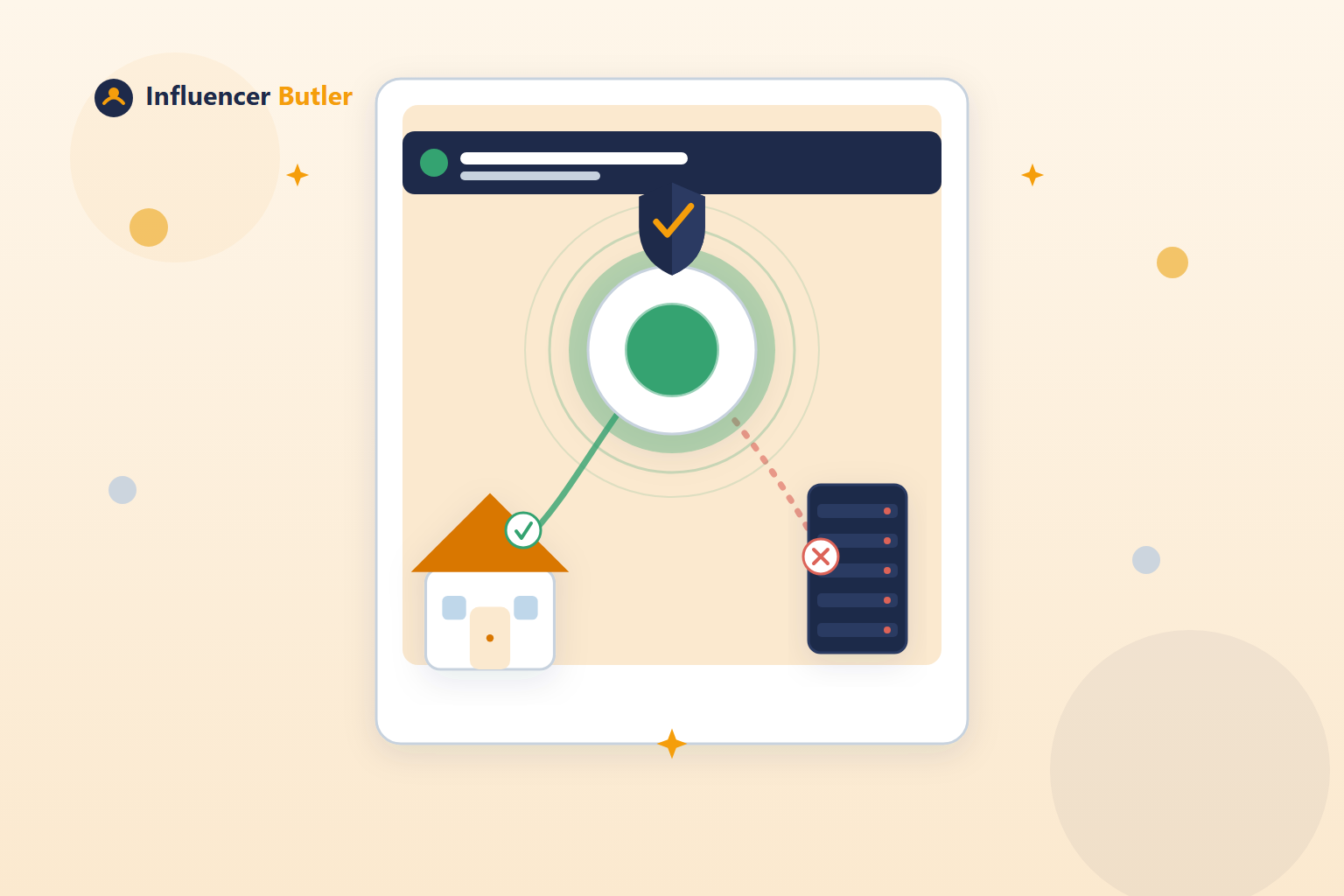
Every time the app is running, a small chip in the top bar shows the current connection type, color-coded so you do not have to read anything to understand it:
- Green for residential, mobile, or Starlink. All three are treated as safe, because all three look like a real person's internet connection to anyone watching from the outside.
- Yellow for a VPN or a generic proxy. Not immediately dangerous, but not the same thing as a residential IP either, and worth a second look.
- Red for a data-center IP. This is the one the proxy-transparency posts on this blog have been warning about: a block of addresses that belongs to a hosting provider, not a home.
- Gray for unknown, when the app cannot classify the connection yet.
You are not supposed to have to think about this chip. That is the point of putting it in the top bar instead of three menus deep in Settings: it is glanceable, the same way a Wi-Fi icon or a battery percentage is glanceable. Good on login, good at 2pm, good right before you post. You only need to stop and read it when it is not green.
What happens the moment it is not green
If the chip comes up yellow or red, the app does not just sit there quietly changing color and leave you to notice. A banner appears, and it is specific about what it found. A data-center IP gets a different message than a VPN, because they are different problems with different fixes, and a banner that just says "connection issue" is not useful enough to act on.
The banner's main action is a button labeled Guide me now. Clicking it launches a guided coachmark tour, the kind that highlights one piece of the interface at a time and walks you to the next step, that takes you through the actual fix: buying a budget residential proxy, pasting its details into Settings, and then running a Test Connection check to confirm the new connection actually works before you trust it. You are not handed a wall of instructions and left to figure out where the proxy fields live. The tour points at them, in order.
The tour only shows up when it is needed. If your connection is already residential, mobile, or Starlink, the app skips the whole walkthrough. It is not a tutorial everyone sees once and dismisses. It is a fix that appears exactly for the people who have something to fix, and stays out of the way for everyone else.
The backstop that matters more than the chip
The chip and the banner are both about visibility: making a real risk visible instead of leaving it as an abstract warning. But visibility only helps if you are looking. The more important piece is what happens when a working residential proxy disconnects in the middle of a session and nobody is watching the top bar at that exact moment.
Most automation tools, if the proxy drops, just keep going on whatever connection is left. That might be the proxy reconnecting cleanly. It might also be your raw, un-proxied connection, or whatever the operating system falls back to, posting and clicking under your account with no residential IP standing in front of it at all. The tool has no way to tell the difference, so it does not try. It just keeps running.
This app does the opposite. If a residential proxy that was working disconnects mid-session, the app stops everything and sends you an email alert. It does not downgrade silently and hope the gap is short. It treats "I am no longer sure this connection is safe" as a reason to halt, not a reason to keep posting and sort it out later. That is the backstop that actually protects the account, because it assumes the worst case (an unsafe connection) rather than the best case (a brief blip that fixes itself).
Checking it on your own schedule
You do not have to wait for a warning to see where you stand. The app's Settings page has its own connection-status row, showing the same residential, mobile, Starlink, VPN, proxy, or data-center labels as the top-bar chip. If you are about to start a longer posting session, or you just switched networks, or you are simply curious, you can open Settings and look rather than waiting for a banner to tell you something is wrong. The chip is for glancing. The Settings row is for checking on purpose.
All of this, the egress-IP check itself and the residential-proxy requirement it is built around, is disclosed in the app's Privacy Policy. It is not a hidden background process; it is a documented part of how the app decides what is safe to run on.
A realistic first run
Picture starting the app from your desk at a shared office, on the office's regular Wi-Fi. Nothing about that network is unusual for a person, but the egress check does what it is built to do and classifies the connection as something other than residential, maybe a VPN the IT department routes everyone through, maybe something that reads as a data-center range depending on how the office's internet is set up. The chip comes up yellow or red.
The banner explains which one it found and offers Guide me now. You click it, and the coachmark tour walks you through the two or three steps that matter: pick a budget residential proxy provider, paste the host, port, and credentials into the proxy fields in Settings, and click Test Connection. A few seconds later, the app reclassifies its own outgoing connection, confirms it now looks residential, and the chip in the top bar turns green. From there, autopilot features that were waiting on a safe connection can run normally, and if that proxy ever drops mid-session later, you get an email instead of a surprise.
That loop, see the risk, get walked through the fix, confirm it worked, is exactly the concrete version of what the rest of this blog's proxy-transparency series has been arguing for in general terms. A datacenter IP being risky is a claim. A chip that turns red the moment your own connection becomes one, and a backstop that stops the app rather than quietly running on it anyway, is the feature that makes the claim something you can actually check for yourself.
Share this post
Tools and guides for this topic
Put this into practice with the tools and walkthroughs that match what you just read.
- Free courseFree Amazon Influencer courseA free step-by-step course from first storefront to first commissions.
- Free toolAll free creator toolsCalculators and generators for Amazon and social creators, no signup.
- Free extensionFree Chrome extensionMoney signals on the Amazon pages you already browse, free.
Let a butler handle the busywork.
Influencer Butler automates the repetitive parts of running your creator business, from accepting Creator Connections campaigns to catching price drops and keeping your outreach moving. Try it free for 14 days.
Start your free trial